
Secure Page Password

Secure Page Password

Secure Page Password

Lock any section of your Framer site behind a password. Perfect for protecting case studies, client work, or portfolio projects — without touching a single line of code.

Lock any section of your Framer site behind a password. Perfect for protecting case studies, client work, or portfolio projects — without touching a single line of code.

The problem it solves

The problem it solves

Framer doesn't offer native password protection for individual pages or sections. If you're a designer with a portfolio, you've likely faced this: you want the world to see who you are and what you do, but your case studies contain sensitive client work, unreleased product designs, or details you'd rather share selectively — only with recruiters, clients, or collaborators who ask for access.

The common workaround is to host case studies on a separate, unlisted URL and share it privately. That works, but it breaks the experience. Visitors land on your homepage, see a blurred or hidden project section, and have no clear path forward.

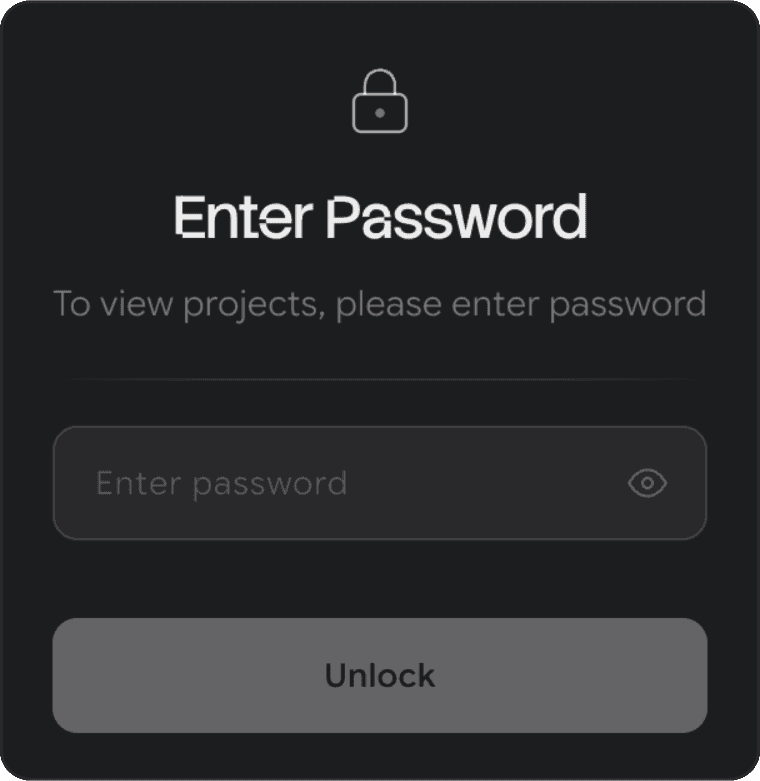
Secure Page Password solves this cleanly. Place it over any section of your page. Visitors see a polished password prompt. Enter the correct password and they're redirected to the full version of the page — no separate URL, no broken flow, no backend required.

Framer doesn't offer native password protection for individual pages or sections. If you're a designer with a portfolio, you've likely faced this: you want the world to see who you are and what you do, but your case studies contain sensitive client work, unreleased product designs, or details you'd rather share selectively — only with recruiters, clients, or collaborators who ask for access.

The common workaround is to host case studies on a separate, unlisted URL and share it privately. That works, but it breaks the experience. Visitors land on your homepage, see a blurred or hidden project section, and have no clear path forward.

Secure Page Password solves this cleanly. Place it over any section of your page. Visitors see a polished password prompt. Enter the correct password and they're redirected to the full version of the page — no separate URL, no broken flow, no backend required.

Features

Features
  • Fully transparent background — sits cleanly over any content beneath it without adding a fill or overlay

  • Auto-responsive — detects its own container width and switches between desktop (24px radius), tablet (16px radius), and mobile (12px radius) token sets automatically. Just resize the component frame per breakpoint in Framer

  • SHA-256 password hashing — optional toggle to store a hashed version of your password instead of plaintext, so your real password is never readable in browser DevTools

  • Shake animation on wrong password with auto-clear

  • Smooth unlock animation with redirect on success

  • Show/hide password toggle on the input

  • Every colour is editable from the right panel — card fill, border, heading, body, input, button, success and error states

  • Font names are editable — works with any custom font loaded in your Framer project

  • Hint field — optional, leave blank to hide

Use cases

Use cases
  • Portfolio sites where you want visitors to see your profile but need a password to access project case studies

  • Client preview pages you want to share selectively before a project goes live

  • Agency or studio sites with a members-only or NDA-protected work section

  • Early-stage product pages shared with beta users or investors

How to use

How to use
  • In Framer, go to Assets → Code → New File, name it SecurePagePassword, paste the component code, and save.

  • On the page you want to protect, blur or visually obscure the section you want to hide (Framer's blur effect on a frame works well for this).

  • Drag the PasswordGate component from Assets onto the canvas and position it over the blurred section. Set its position to Absolute in the layout panel.

  • In the right-hand properties panel, set your Password and Redirect URL (the page visitors land on after a correct entry).

  • Optionally toggle Hash password → SHA-256 and use the companion HashGenerator component (listed separately) to generate a secure hash to paste in instead of plaintext.

  • For each breakpoint (Desktop, Tablet, Mobile), resize the component frame to match the section it covers — the card inside reflows automatically.

  • Publish. Visitors will see the password gate over the protected section.

Notes

Notes
  • The default fonts can be changed to any font loaded in your Framer site settings via the Font fields in the properties panel.

  • For stronger password security, use the companion HashGenerator component to generate a SHA-256 hash of your password. Enable the Hash password toggle and paste the hash into the Password field. Your real password will never appear in the published code.

  • The default fonts can be changed to any font loaded in your Framer site settings via the Font fields in the properties panel.

  • For stronger password security, use the companion HashGenerator component to generate a SHA-256 hash of your password. Enable the Hash password toggle and paste the hash into the Password field. Your real password will never appear in the published code.

Available For Work

Need a UX expert? Let’s talk.

If you’re looking for someone who simplifies complexity & delivers impact, I’d love to collaborate.

ranjusonofravindran@gamil.com

+91 - 7259 151 942

© 2026 | Ranju's UX Portfolio

Available For Work

Need a UX expert? Let’s talk.

If you’re looking for someone who simplifies complexity & delivers impact, I’d love to collaborate.

ranjusonofravindran@gamil.com

+91 - 7259 151 942

© 2026 | Ranju's UX Portfolio

Available For Work

Need a UX expert? Let’s talk.

If you’re looking for someone who simplifies complexity & delivers impact, I’d love to collaborate.

ranjusonofravindran@gamil.com

+91 - 7259 151 942

© 2026 | Ranju's UX Portfolio